

How to Make a Sheru Bhai Photo
Follow the real interface to upload a photo, generate a group photo with the Sheru Bhai lion character, download it, and troubleshoot common problems.
Start at the homepage generator. This guide follows the controls you will see on the site, from choosing a photo to saving your result.
1. Sign in and check your credits
Sign in using the site's sign-in control. You need account credits to generate an image. Check the images left balance in the generator or visit your Dashboard. If your balance is zero, choose a one-time credit pack.
Each generation reserves 1 credit. Confirmed failures return it automatically. Downloads of a completed result do not use additional credits.
2. Upload one clear photo
In Your photo, select Choose a photo or drag one image into the upload area. On a phone, tap the upload area to open your photo picker.
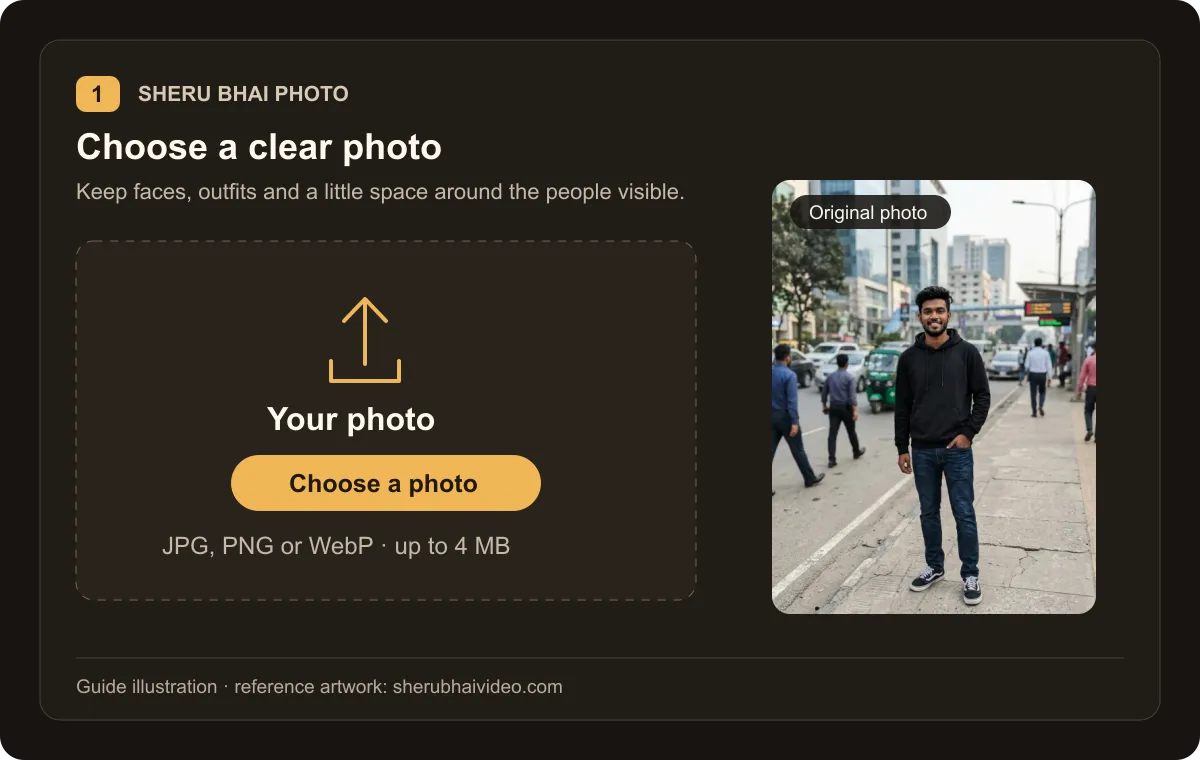
Use a JPG, PNG or WebP up to 4 MB, with each side between 300 and 6000 pixels. HEIC files need to be exported as JPG or PNG first.
For a better result:
- Choose a photo where the people are sharp and well lit.
- Keep faces and outfits visible; avoid heavy blur or objects covering the people.
- One person or a group both work — everyone in the photo stays in the result.
- Use a photo of yourself or adults who have agreed, and only an image you have permission to edit.
- Use a still photo. Videos are not supported.
Once selected, your photo appears in the upload area. Select Click to replace to choose another file, or Clear photo to remove it. When you are signed in, uploading starts after you pick a valid photo; wait for Photo uploaded — ready to generate.
3. Generate your group photo
The effect is built in: a realistic group photo of the people in your photo with the Sheru Bhai lion character. Select Generate image once. If you have not signed in, the site will ask you to sign in first. If your balance is insufficient, purchase a pack before submitting again.
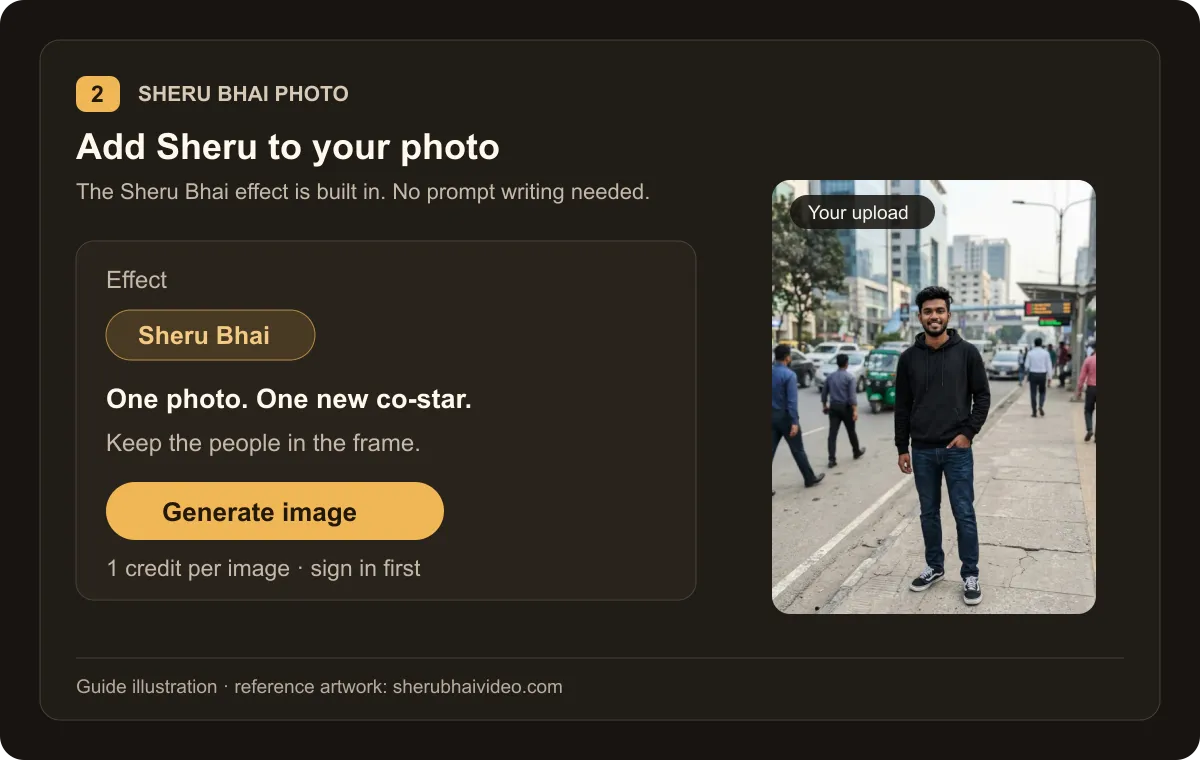
The site uploads the photo if needed, reserves the credit and starts the generation. You may see Queued followed by Generating your image…. Wait for the result rather than submitting another task. Generation time varies; a slow task or interrupted connection alone does not mean the generation has failed.
Your task keeps running if you refresh the page. Use the same account to check its status in Dashboard → Generation history.
4. Download your Sheru Bhai photo
When the task completes and the image has loaded, your result appears in Your result as one photo — the people from your upload posing with Sheru Bhai.
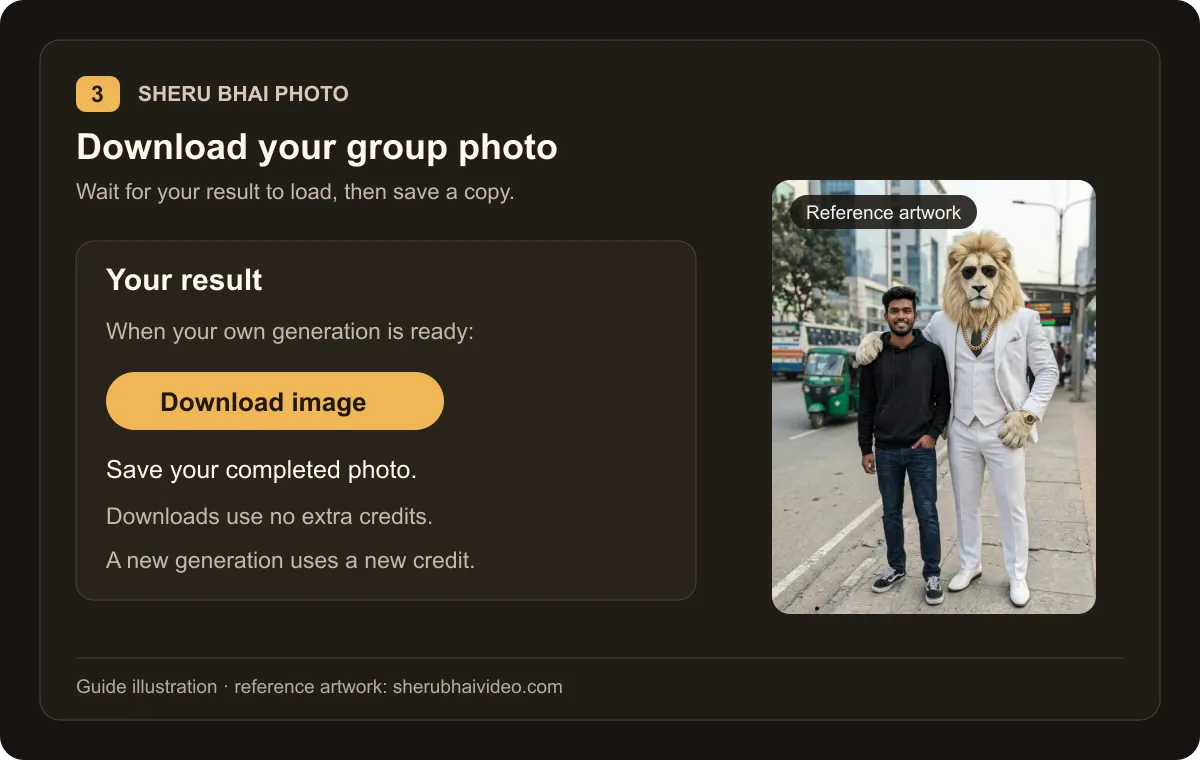
These guide illustrations use reference artwork from sherubhaivideo.com. They explain the controls and are not screenshots of a completed generation on this website. Your own result and the character's styling can differ.
- Download image saves the generated photo.
- Generate again creates a new image and uses another 1 credit. It is not a download or preview refresh.
Images are delivered up to 2K, with dimensions based on the source photo's aspect ratio. Downloads are watermark-free and cost no extra credits. Save a copy for your records. You can also download a saved result image from Generation history.
Troubleshooting
The photo will not upload
Check the file type, size and dimensions above. Export unsupported formats as JPG or PNG, and try a different clear photo if the file cannot be opened. If the interface reports an interrupted upload, check your connection; selecting Generate image retries the upload before starting a task.
Generate image is disabled
Wait for the photo check to finish and make sure a photo is selected. The button also stays disabled while a submission or generation is running. If you replaced or cleared the photo, upload it again.
There are not enough credits
Check your balance in Dashboard. If a failed generation has just returned a credit, allow the balance to refresh. If it is still zero, use the Pricing page. If a purchase has not appeared, check My Orders and contact support with the order number; avoid buying the same pack again just to resolve a delayed balance.
The task is taking longer than expected
Check the task in Generation history using the same account. A queued or generating task is still in progress. Do not start duplicate generations to check its status: each new submission reserves new credits. If the status does not resolve, contact support with the task details and approximate submission time.
The generation says Failed
Once the generation is confirmed failed, its reserved credit is returned automatically. Check your balance, then use Generate again or try a clearer photo. A retry is a new generation and reserves a credit again. Payment refunds are handled separately under the Refund Policy.
The result is saved but the preview will not load
Select Reload image in the result panel, or open the saved result from Generation history. A preview-loading problem does not require a new paid generation. Wait for the image to load before using the download buttons.
The download does not appear
Check the browser's Downloads list or your phone's downloaded files. Try the download again after the image has loaded, or use the saved result in Generation history. Downloading the same completed image again does not consume credits.
The result is not what I expected
AI generation can change details and composition; an exact outcome is not guaranteed. Try a photo where the people are larger in the frame and the lighting is even. Generating another version uses a new credit; a completed result is not automatically treated as a failed generation because of personal preference.
Contact support
Email support@sherubhaiphoto.pro with the problem, approximate time, task or order details, and any error message. Never send passwords or full payment-card details. See the Privacy Policy for photo-data and deletion requests.